$ git show ui-element-table
UI Element Table
ACTIVE+ UPM › add package from git URL
https://www.pkglnk.dev/ui-element-table.git
✓ via pkglnk
// OVERVIEW
Unity's UIElements can do a lot, but 'give me a data table' isn't its strong suit out of the box. UI Element Table fills that gap with generic data binding, customizable columns, interactive cell selection, and full stylesheet support. Define your columns, bind your data, handle click events—everything you need to display tabular data without reinventing the grid.
// DETAIL
A flexible Unity package for rendering data tables using UIElements. Supports generic type-safe data binding, customizable column definitions with adjustable widths, optional row numbers, and interactive cell selection with click callbacks. Includes custom stylesheet support for full visual customization and lambda-based cell content creation for flexible rendering.
// README
UIElement Table
Overview
UIElement Table is a Unity package that provides a way to draw tables with UIElements.
Installation
Add UIElement Table to your Unity project via Package Manager:
- Open Window > Package Manager
- Click + > Add package from git URL
- Enter:
https://www.pkglnk.dev/uitable.git

Support
If you like my work then please consider showing your support by buying me a brew

Usage
// Create a table
_table = new DataBindingUITable<Person>();
rootVisualElement.Add(_table);

// Style the table
var styleSheet = Resources.Load<StyleSheet>("CustomTable");
_table.SetCustomStyleSheet(styleSheet);

// Show row numbers (optional)
_table.ShowRowNumbers(new ColumnDefinition("#", 50f));

// Define columns using AddColumn with a cell creation func
_table.AddColumn(
    new ColumnDefinition("Name", 150f),
    person => new Label(person.Name)
);
_table.AddColumn(
    new ColumnDefinition("Age", 75f),
    person => new Label(person.Age.ToString())
);
_table.AddColumn(
    new ColumnDefinition("Country"),
    person => new Label(person.Country)
);

// Listen for cell clicks
_table.RegisterCallback<TableCellClickEvent>(evt =>
{
    var cell = _table.GetCell(evt.ColumnIndex, evt.RowIndex);
    var label = cell.Q<Label>();
    Debug.Log($"Clicked on cell: Column={evt.ColumnIndex}, Row={evt.RowIndex}, Value={label.text}");
});

// Populate the table with data
var people = new List<Person>
{
    new Person("Alice", 30, "USA"),
    new Person("Bob", 25, "Canada"),
    new Person("Charlie", 35, "UK")
};
_table.SetData(people);

public class Person
{
	public string Name;
	public int Age;
	public string Country;

	public Person(string name, int age, string country)
	{
		Name = name;
		Age = age;
		Country = country;
	}
}
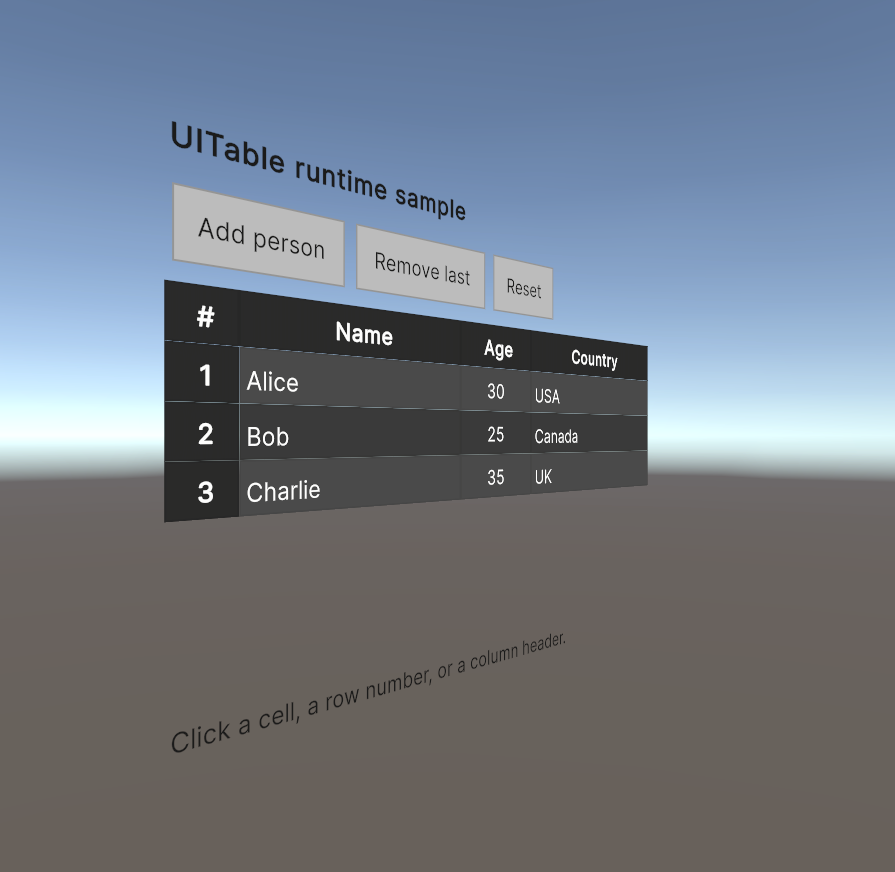
World space
A UITable is standard UI Toolkit content, so it renders in a world-space UIDocument just as it does on screen (world-space UI Toolkit requires Unity 6.2+):
Styling
SetCustomStyleSheet (above) layers a custom stylesheet over the default look. The table's appearance is driven by USS variables on .ui-table, so a theme is just a short override:
.ui-table {
    --text-color: #1f2933;
    --header-bg-color: #dfe3e8;
    --row-even-bg-color: #ffffff;
    --row-odd-bg-color: #f1f3f5;
    --highlight-bg-color: #cfe3ff;
}
The samples include Light and Ocean themes and a scenario that swaps them at runtime.
Samples
Import UITable Examples from the package's Samples tab in the Package Manager: an editor validation harness, runtime and world-space sample scenes, and the theme examples.